The usage of the predict widget helps to form a compelling experience for your audience and make it engaged with your business. It is a great opportunity for creating interactive activities for sports competitions or any other events. This experience is very valuable for those who are fond of their teams and are interested in the tournament outcome.
With Predict, your audience can join the interactive experience of guessing the competition's leaders per round, with an opportunity to win a prize or be rewarded at the end of the competition.
Each campaign has a simple setup and can easily be customized to your company's brand, voice, and design.
Let's look at the campaign creation flow in detail.
Quick Start
The campaign is an interactive initiative for audience engagement. It contains a bracket that has 8, 16, 32, or 64 participants, subdivided into categories (e.g. teams). It has custom naming, design, sharing, sign-in settings, analytics and can be restricted for access or even view by geographic location.
To access Engage, please request access by emailing support@nextleague.com and use the credentials provided to sign in.
See more details in this chapter.
After successfully signing in, you can begin the process of creating a campaign in a few simple steps.
Select Create New Campaign option, add the title and description, and click Create.
From there, the campaign editor opens for the campaign details setup.
Adding Campaign Settings
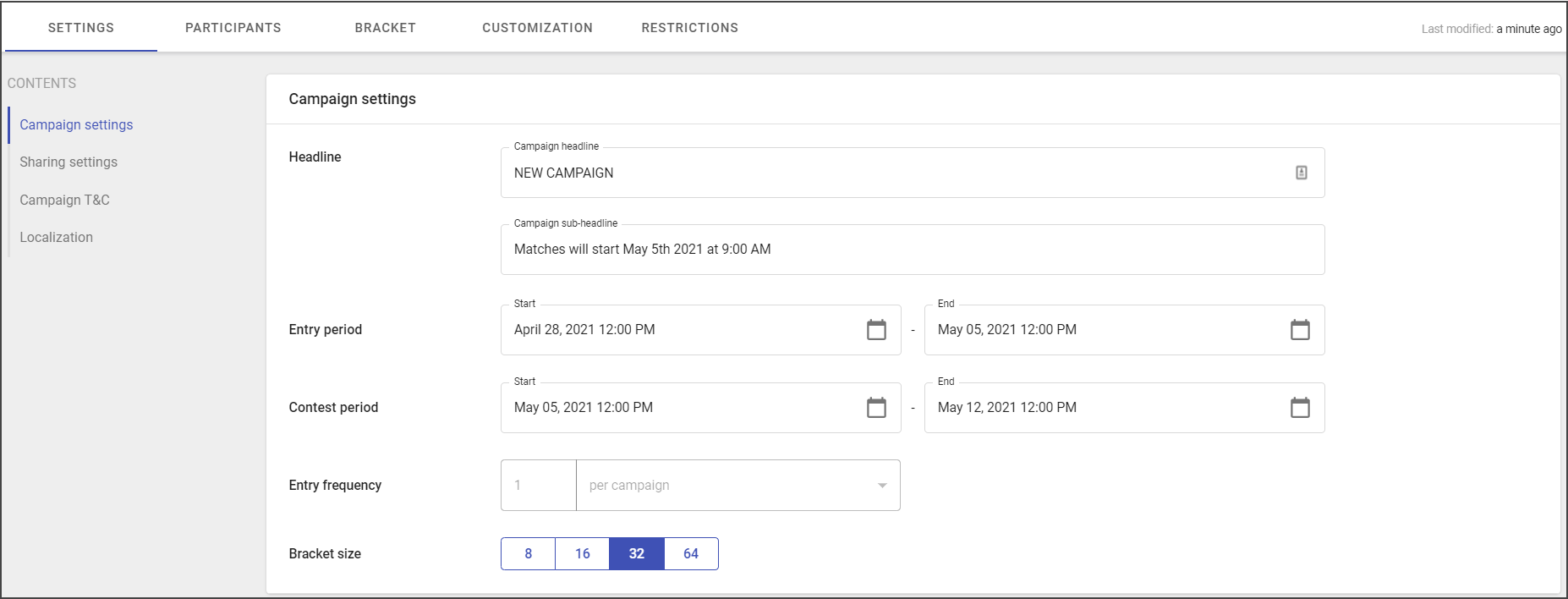
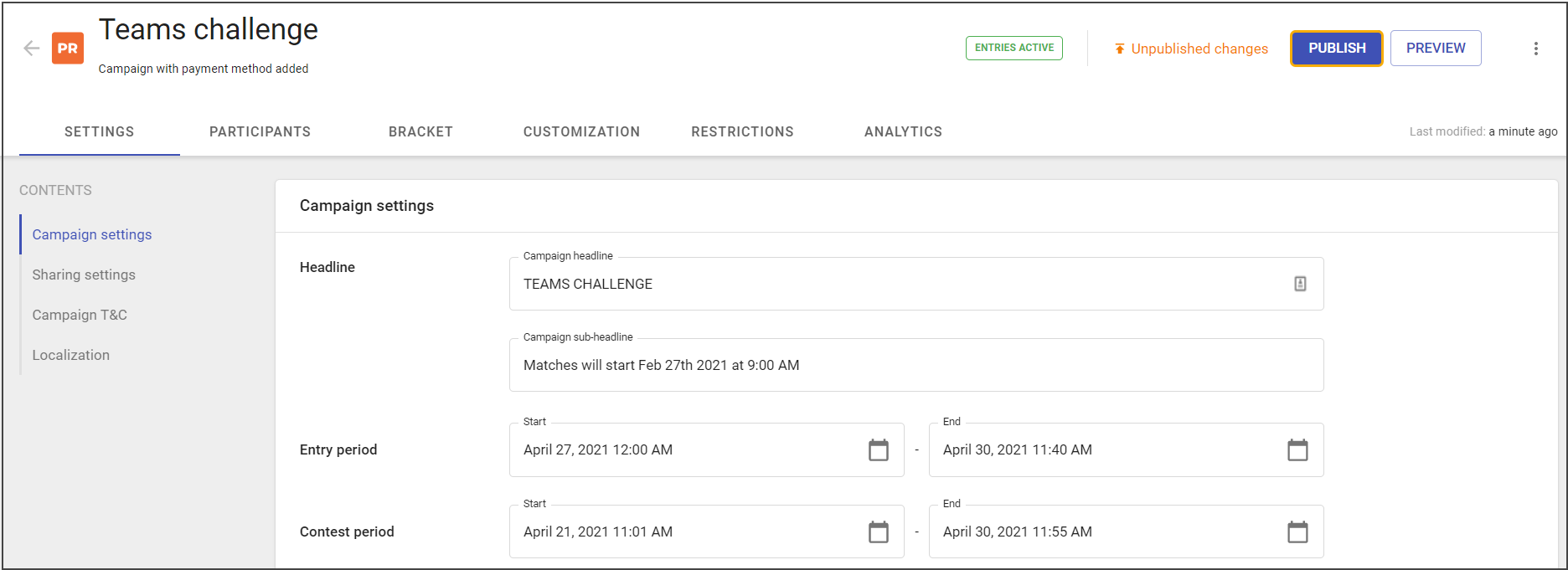
The first tab that opens in the editor is Settings. This tab is used to specify the entry period, the period of the contest, the entry period, and bracket size.
The entry period is the time that regulates the duration of the period for making predictions. The contest period occurs after entries have been submitted - this period should match the start and end dates of your competition.
Entry frequency is the same for every campaign - one entry per campaign.
The bracket may consist of 8, 16, 32, or 64 participants.
This chapter also contains settings for the Terms and Conditions (T&C) consent.
To know more details about Campaign settings, open the following chapter.
Participants Configuration
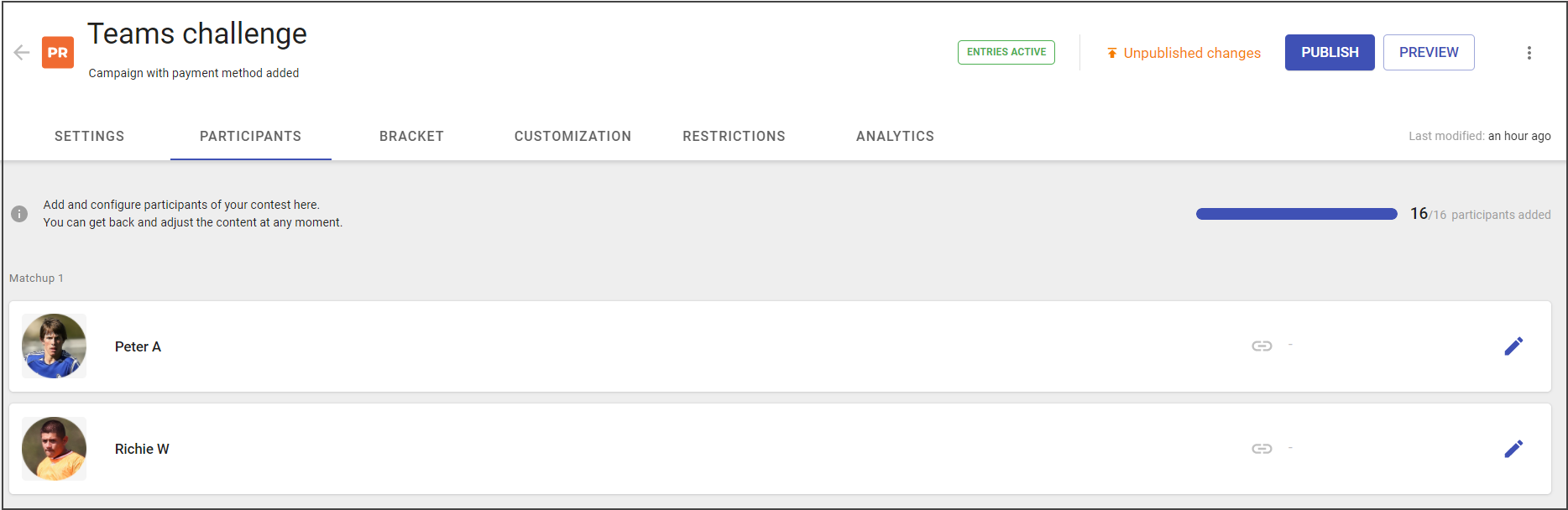
Participants are the team members or individuals taking part in the contest.
Use the Participants tab to familiarize the audience with the contest participant. Add the name and an image that represents a participant best. Also, you can add the link for getting more details about the participant, for example to the article about this person or team. When participants added, they are distributed across matchups for the initial round. You can also reorder them later on the Bracket tab.
See more in this chapter.
Bracket Management
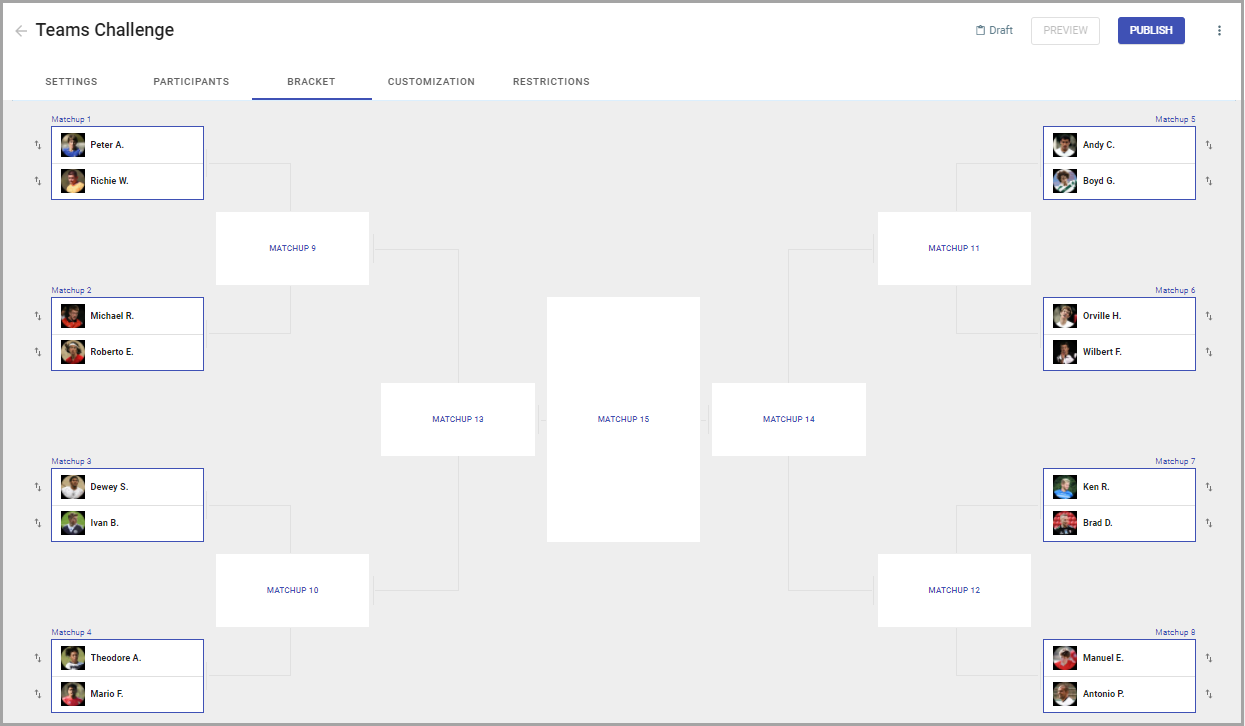
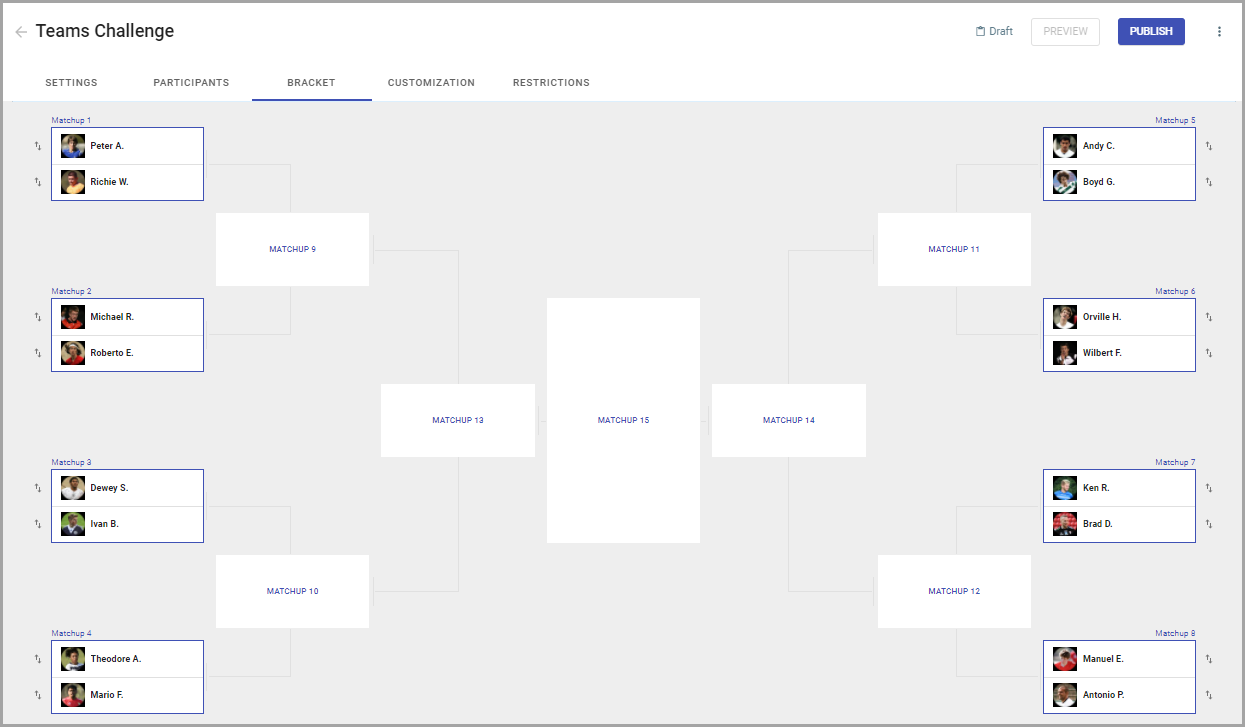
After participants are added, they will appear in the bracket view.
A bracket is a visualization of a tournament or competition that is displaying the scheduled or potential match-ups of an event.
With it, you can change participants' order in the pair and see the bracket layout.
To get more details about Bracket configuration, open the following chapter.
Customization
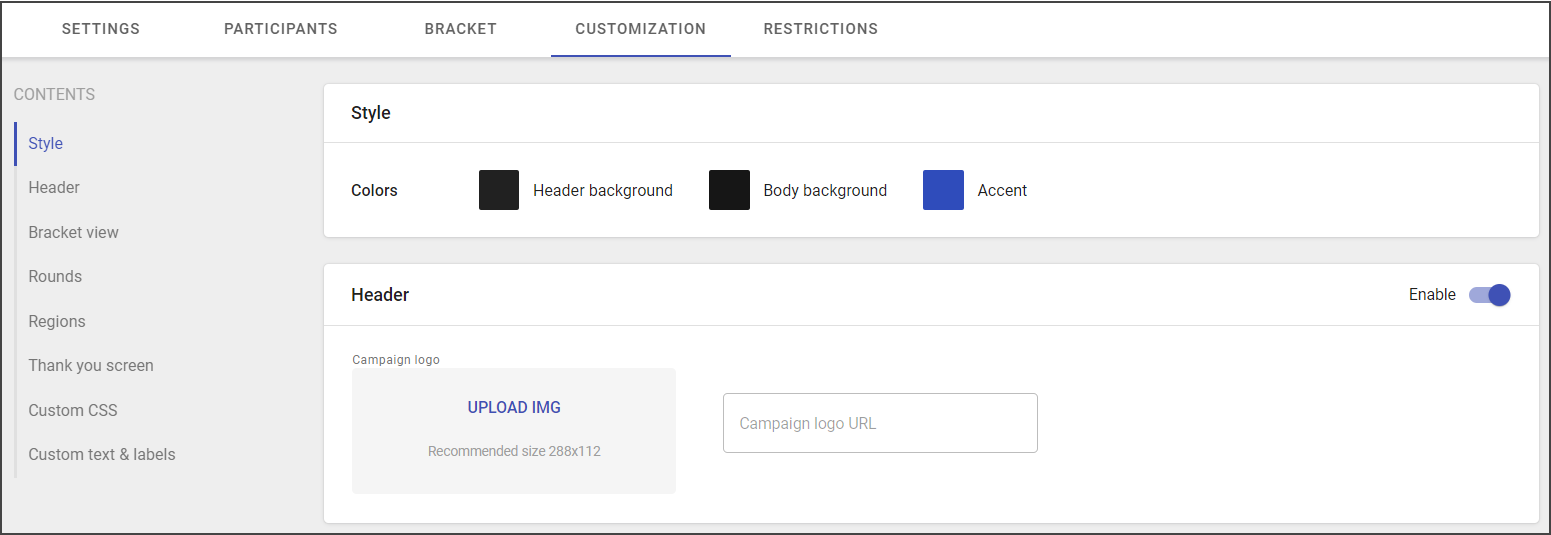
Customization of a bracket style helps to create a widget that will fit the contest mood, make it better comprehensive for the users.
This set of tools will improve user engagement and create a bracket that will fit the brand voice and design.
It is achieved by adding to the campaign the needed colors, campaign logo, custom backgrounds.
Saving & Publishing
As soon as you have added all changes, click on Save changes. The campaign will be saved as a draft.
To publish the campaign click on Publish. Published campaigns have some edit limitations.
To see the full list of limitations go to this chapter.
Running Campaign
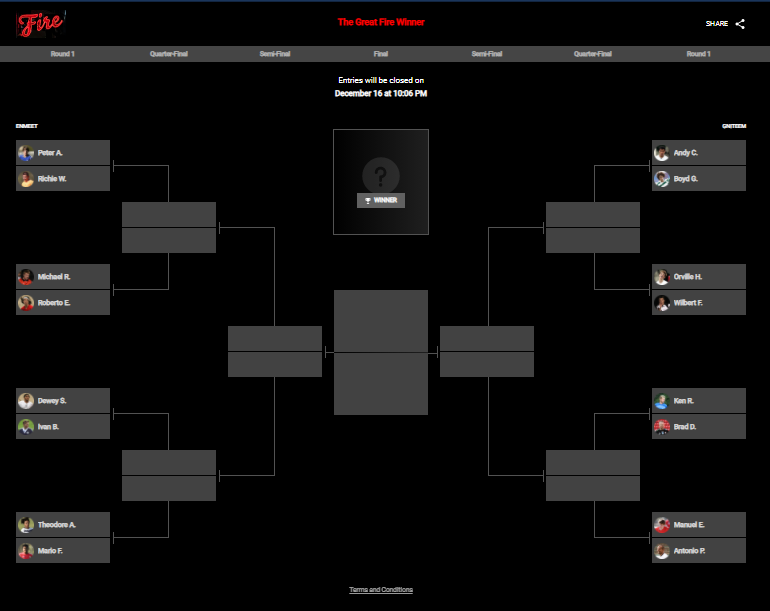
Add the campaign widget to your website via embed code. To know more about the embed code see the following chapter.
Promote the page with the Predict widget and invite your users to participate in the campaign and submit their predictions before the real contest started.
Defining Winners
After the contest period ends, you can add the actual winners to the bracket. This allows users to compare the results with their picks.
To check the accuracy of their picks, users will see the actual results of the contest on top of their picks.
Winners defining is available in the Bracket tab of the campaign profile.
Campaign Performance Tracking
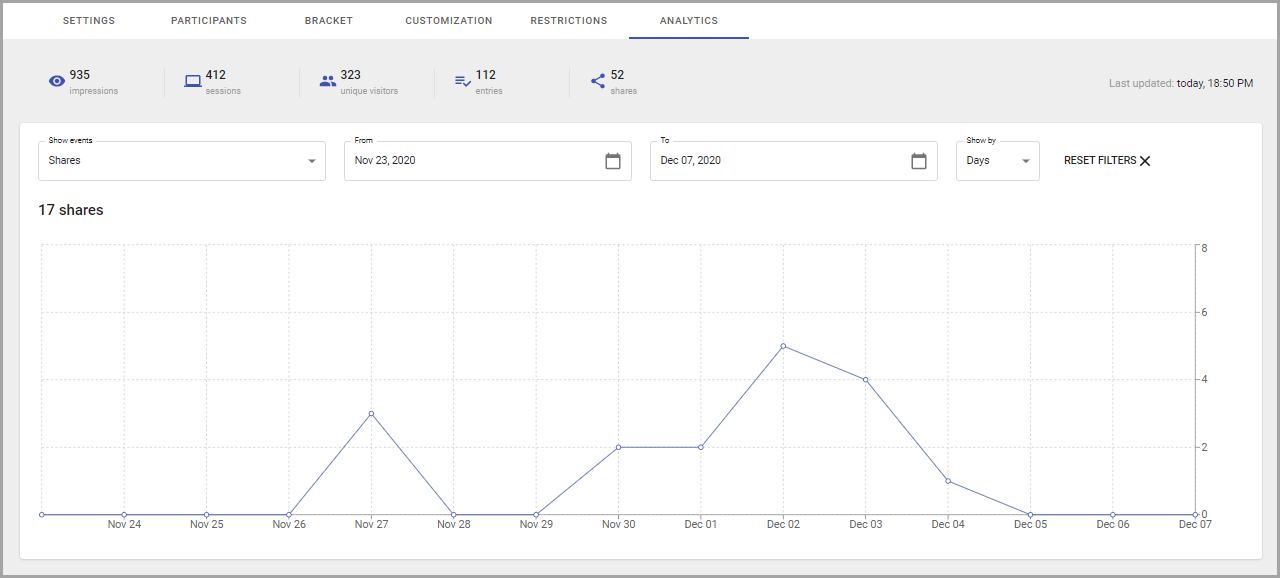
After publishing your campaign and embedding the widget to your webpage, the system will start tracking analytics like page views, unique visitors, submitted entries, sessions, and shares.
The information may be reviewed by predefined filters and displayed in the graph.