Google sign-in is one of the sign-in methods available out of the box.
The sign-in via Google is made in several steps.
- You need to have a Google account and have access to the Google Cloud Platform Console console: https://console.cloud.google.com/.
- In the developer console, add project and set up oAuth (authorization type used by Google). See more details here.
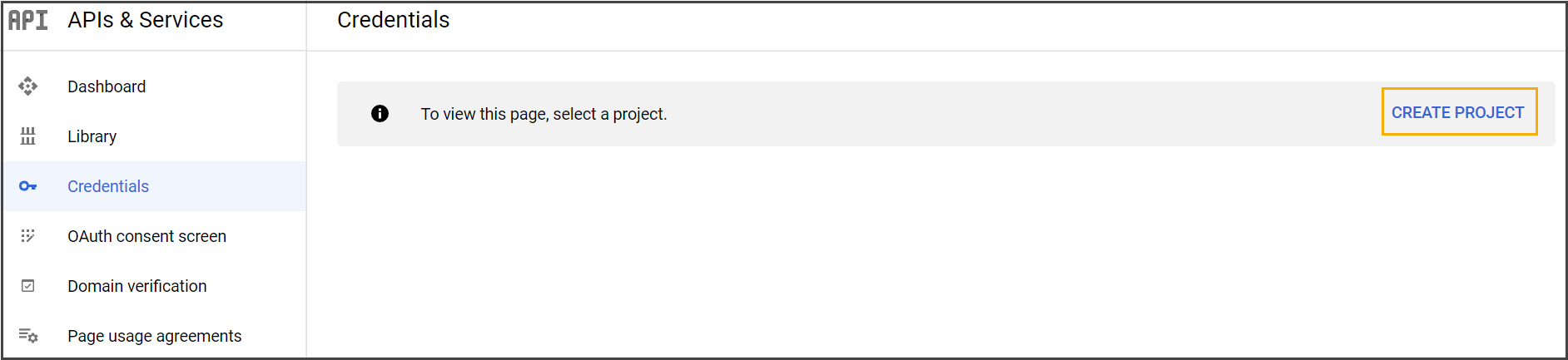
- Set up Consent Screen. See details here.
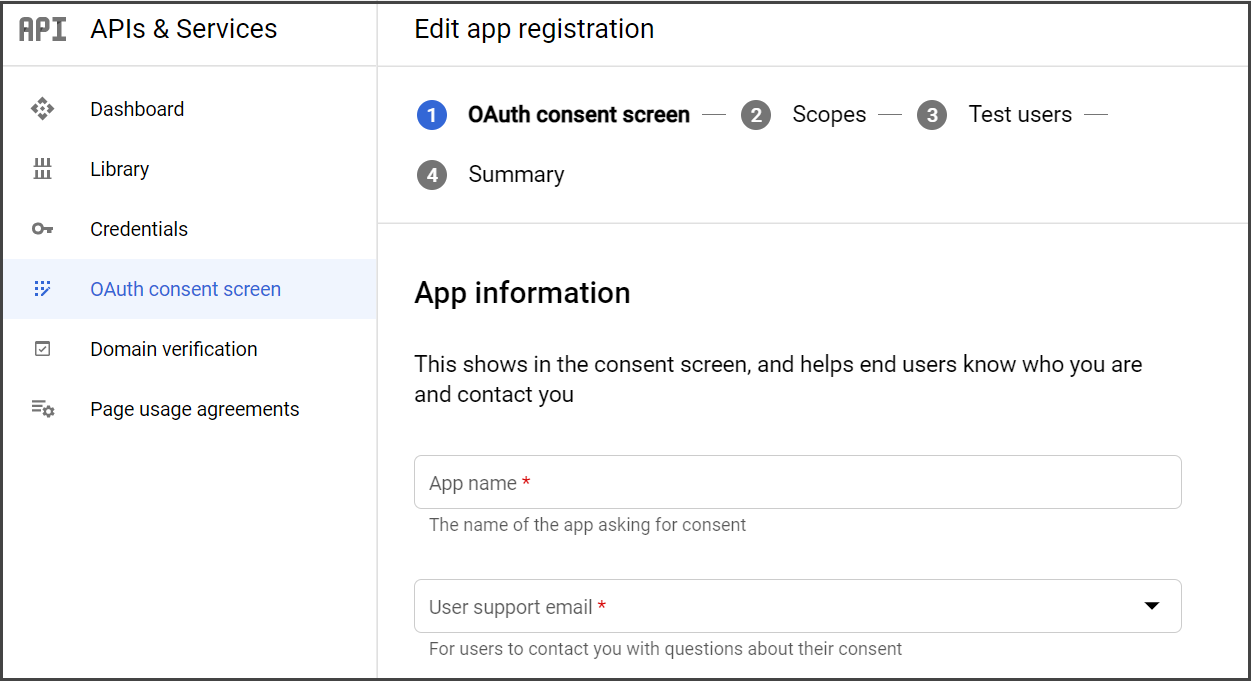
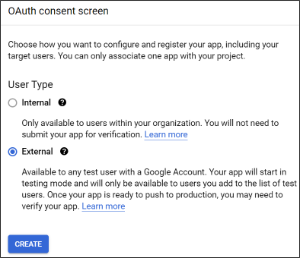
- Specify the External type of users for all the end-users to have an opportunity to submit their answers/predictions.
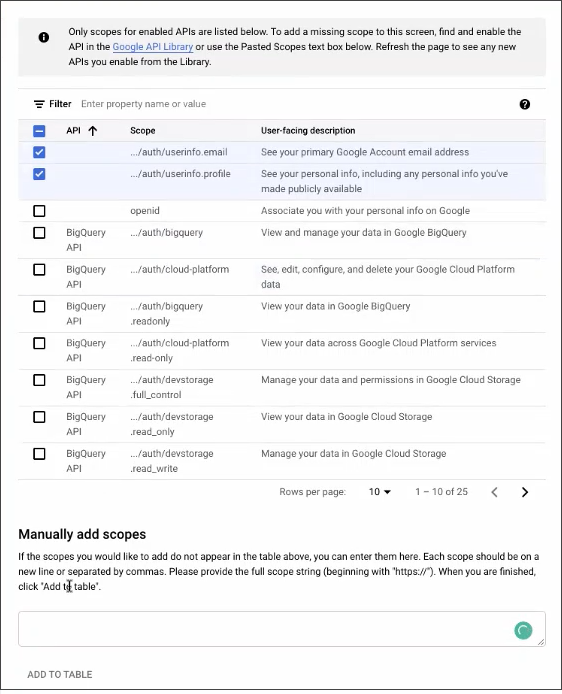
- Specify the type of credentials the widget will get from Google during authorization:
- Set up Web application and add a link to the widget into URI section (you can add multiple URIs).
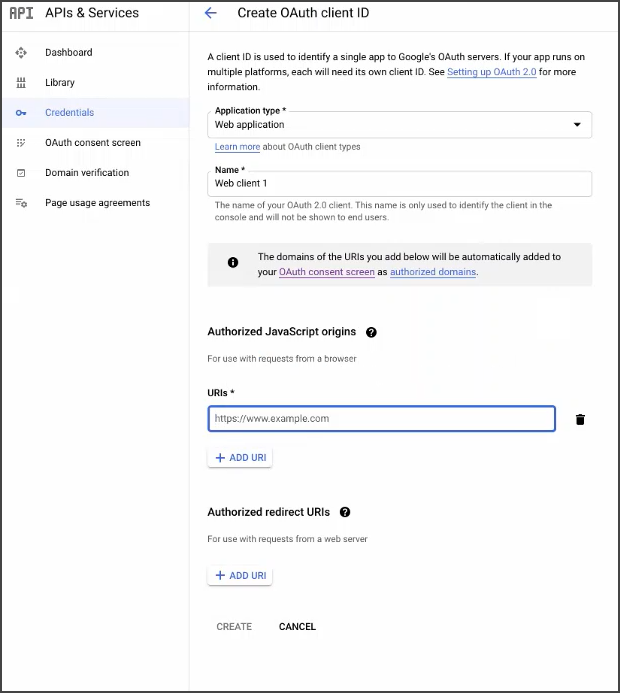
- To add the link, click preview and copy the link part as given below:

- Create client.
- Copy Client ID and Secret Key.
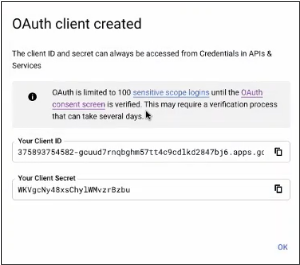
- Paste Client ID and Secret Key to Google sign-in in Settings.
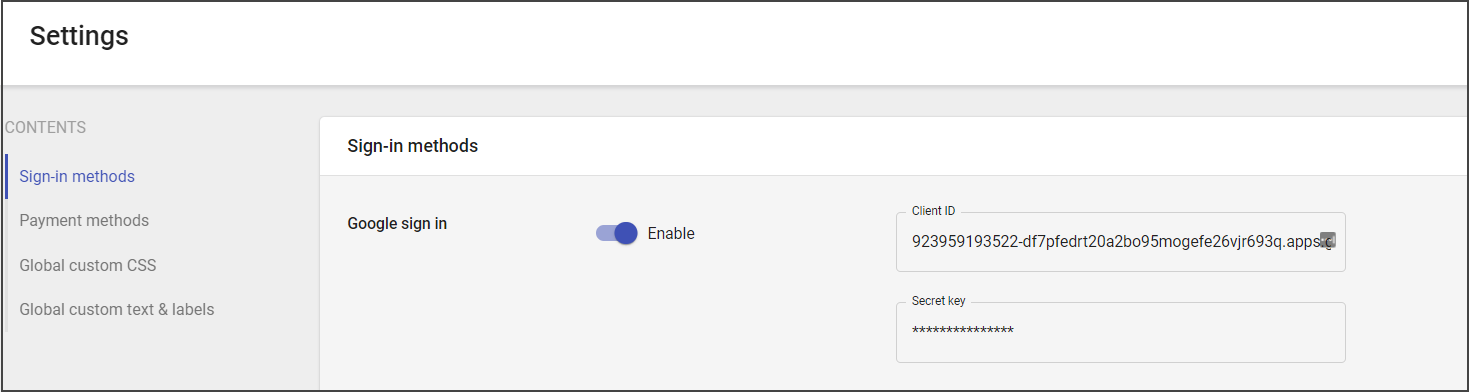
Next, sign-in is set up in global settings and enabled in campaign settings.
- Open Settings and enable Google sign-in.
- Choose needed campaign.
- Open campaign and enable Request Sign in.
- Choose Google as the Sign-in method.
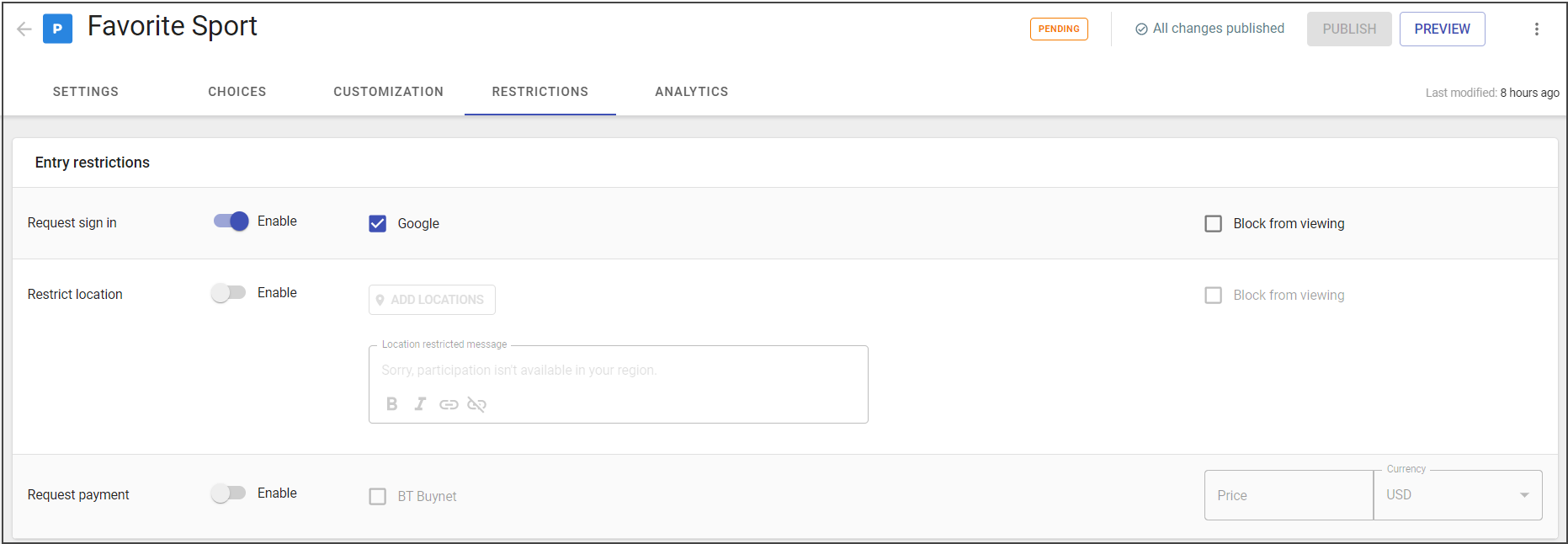
- Save changes.