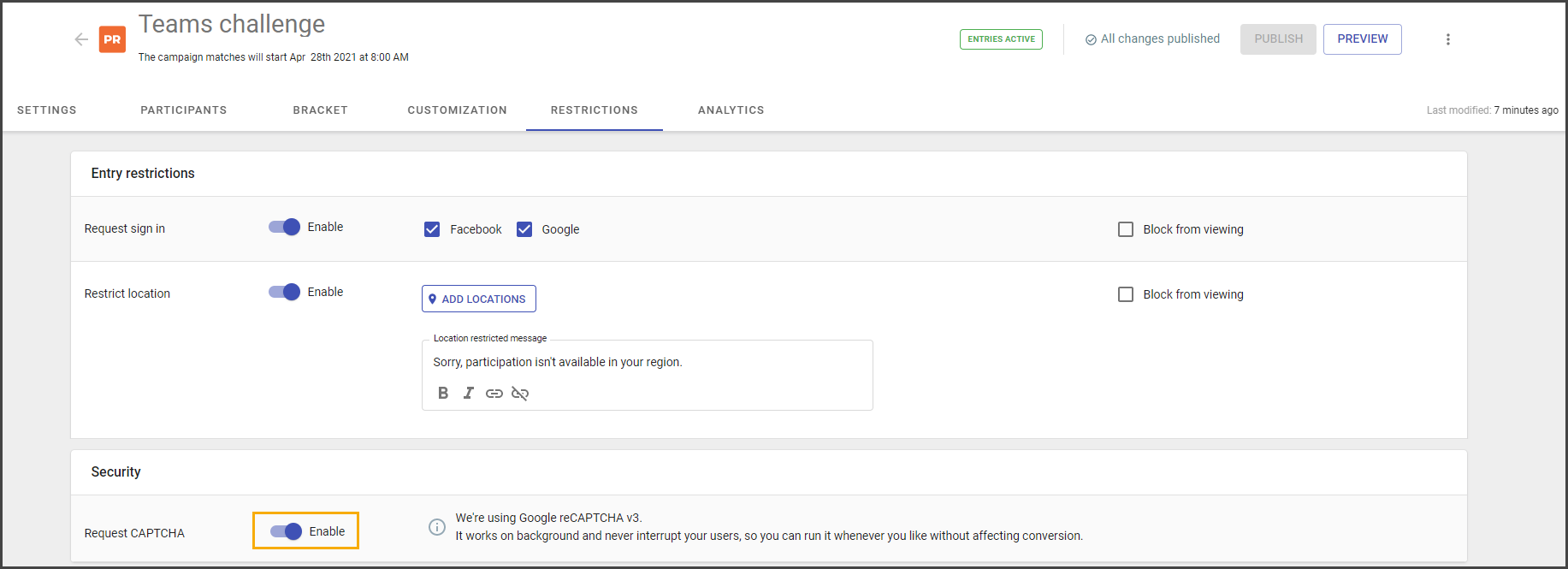
There are several options for the widget audience restriction:
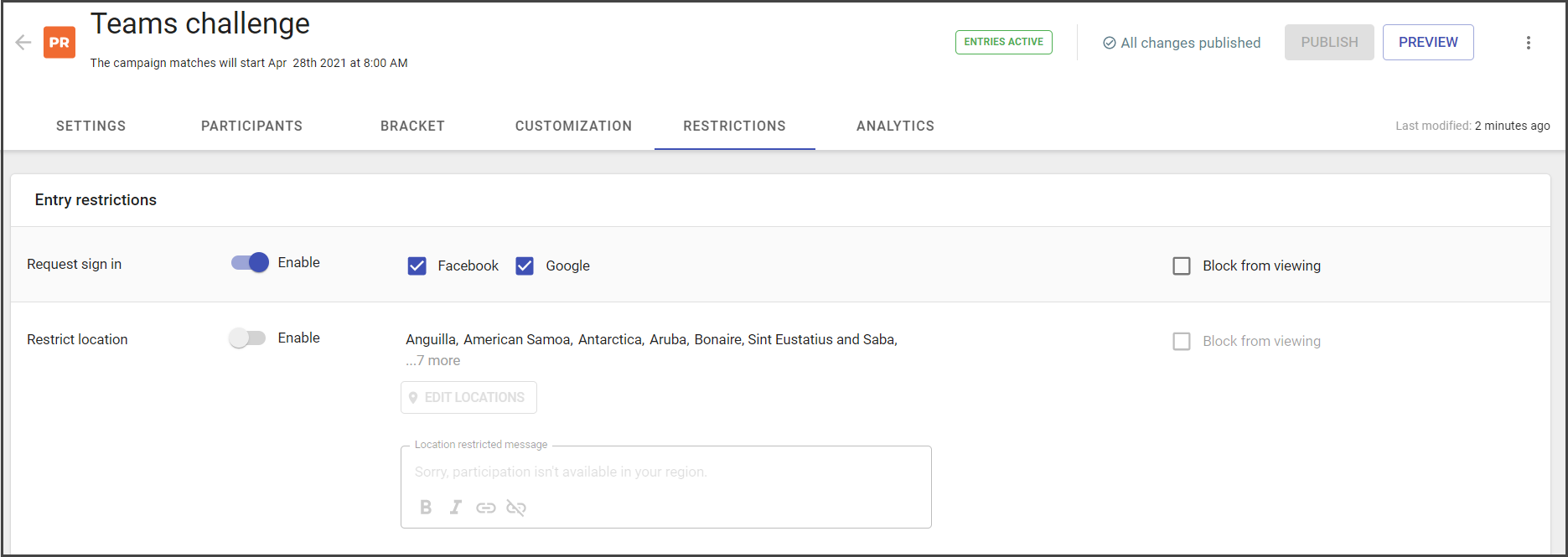
Request sign in
The user will have to sign in to participate in the campaign.
It is possible to use the built-in sign-in method or the custom one.
Currently, Google and Facebook Sign-in methods are available out of the box.
The Google sign-in setup instruction is given on the following page.
The Facebook sign-in instruction is available here.
There are two levels of sing-in restrictions:
- View only access (if sign-in enabled and blocked for viewing disabled) – users can not submit their entries until signed in.

2. Blocked for viewing (if both sign-in and blocked for viewing are enabled) – users can not view the widget content until signed in.
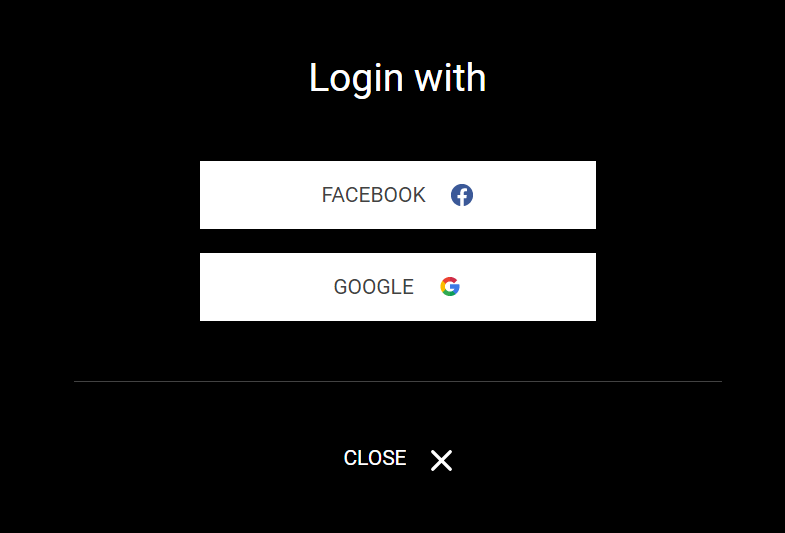
The image above shows the sign-in example.
Restrict location
If this option enabled, users from the restricted locations will:
- be able to preview the widget, but not submit their entry;
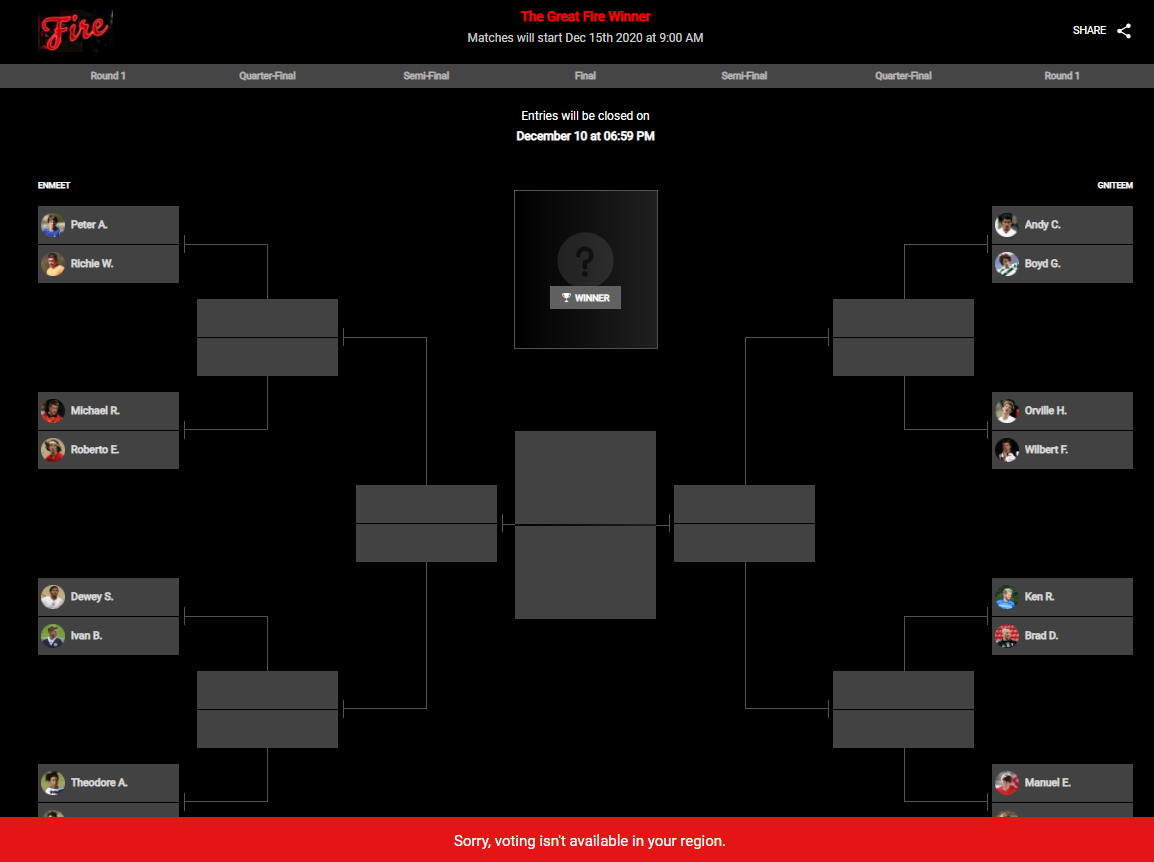
- if Block for viewing option enabled the user will not see the widget and will not be able to submit the entry.
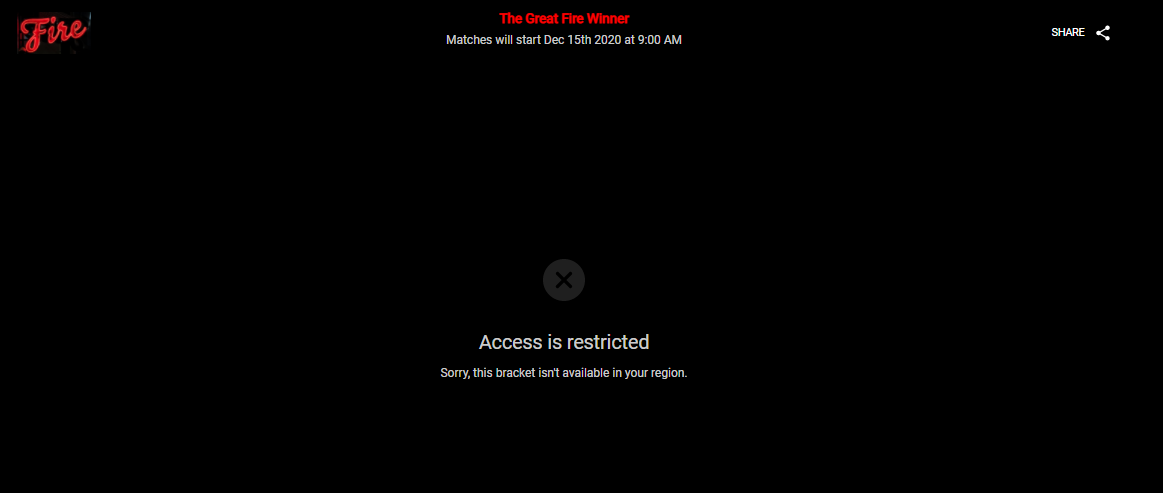
To customize the list of locations do the following:
- Enable Restrict location option.
- Click at Add Locations.
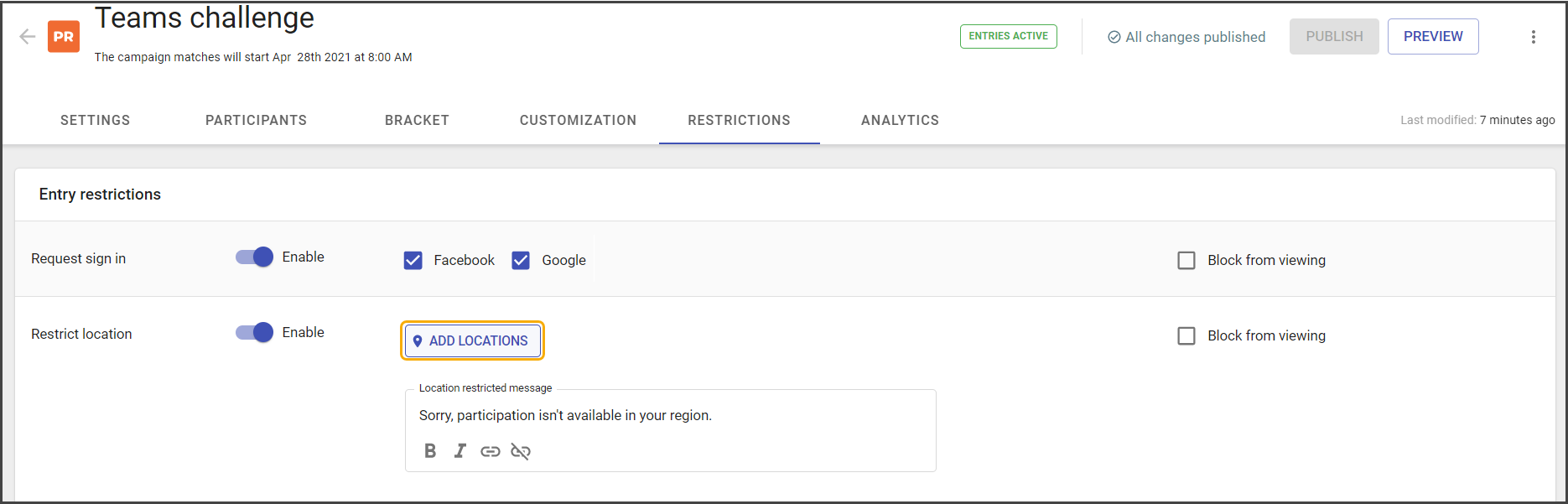
- Select countries from the drop-down list.
- Click at the arrow and scroll down or use the search field to find needed locations.
- Select one or several locations.
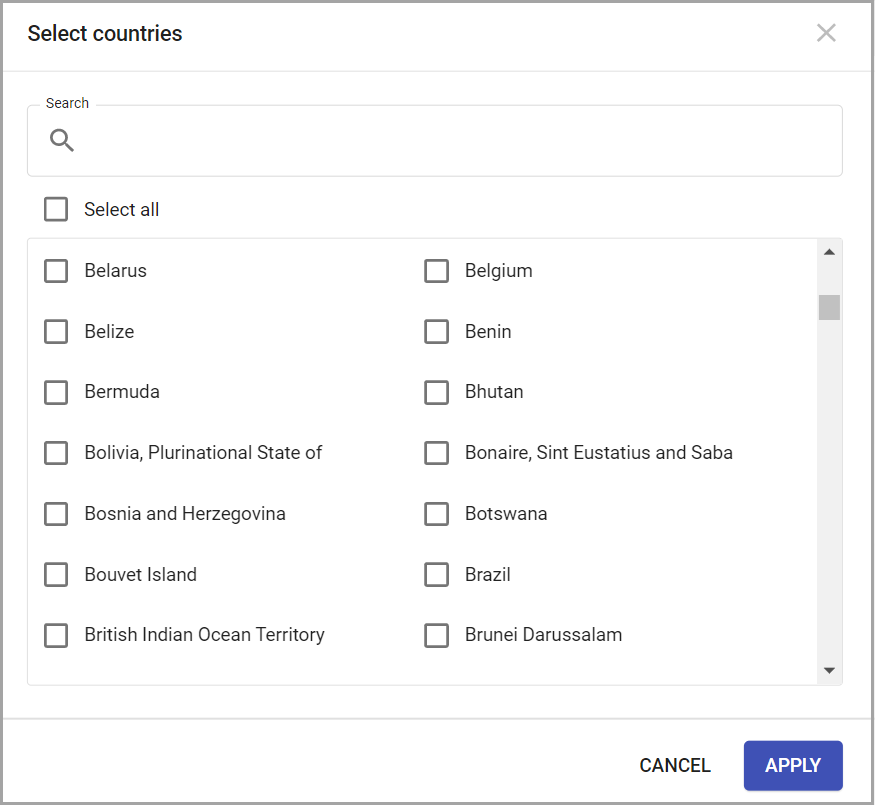
- Click Apply.
Once changes saved, the part of locations will display in the Restrictions tab.
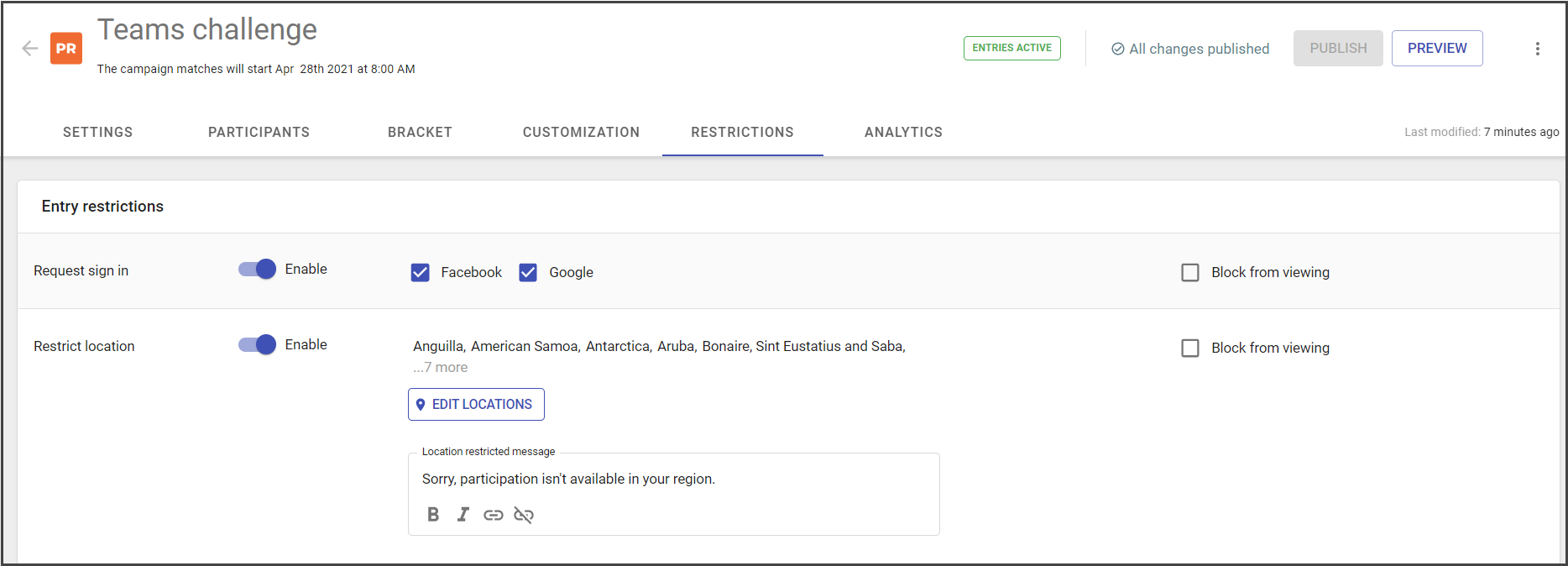
The message for the restricted location could be customized.
Request CAPTCHA
If this option enabled CAPTCHA starts working. Currently, the Google reCAPTCHA v3 is used. reCAPTCHA v3 will never interrupt your users, so you can run it whenever you like without affecting conversion.
reCAPTCHA v3 learns by seeing real traffic on your site. It uses context about interactions with your site, which comes from seeing both legitimate and abusive behavior.
See more information about this technology here.